This post contains links to all of our tutorials to date – created as a reference page for blog links or bookmarks to ensure the tutorials can be easily found.
The post will be updated whenever a new tutorial is added.
We hope you like them, if there is any tutorial you like to see just let us know.. Photoshop Image Stacking for Day Trails
Google Earth 4.2 includes a hidden flight simulator mode which has just taken up most of our morning. By clicking Ctrl + Alt + A or Ctrl + A (depending on your system) Google Earth enters flight simulator mode with the choice to fly either a F16 or SR22 prop aircraft.
Integrating flight simulator mode with a joystick provides the perfect combination, the movie below provides an insight with a flight over London, complete with slightly dodgy sound effects:
Take a look at the Google Earth Blog for more info on flight simulator mode.
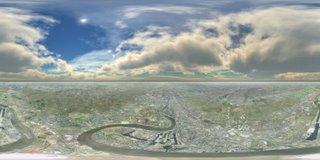
Anendel has created two well crafted panoramas from Google Earth and shared them via his Flickr account, pictured above is Mechelen – A Dutch-speaking city and municipality in the province of Antwerp, Flanders, Belgium.
Below is Antwerp, also in Belgium:
Both the panoramas can be viewed on Anendels Flickr page in both high resolution and interactive via the SPIV panorama viewer.
The majority of the posts in the blog include self captured movies so we thought we would put together a simple tutorial to answer all the questions we get on how they are made.
Creating an engaging movie takes three elements – a high and constant frame rate of capture, an interesting flight path and a suitable sound track. With these in mind you can make a movie from either Google Earth or Microsoft’s Virtual Earth in under 15 minutes. Requirements
1) FRAPS – FRAPS is without doubt the best way to capture what you see on the screen in realtime from either Google, Virtual Earth or any game/virtual environment that uses DirectX or Open GL – this includes Second Life. Fraps is available for $37 and is honestly one of the most useful pieces of software we have bought.
2) Space Navigator – If Fraps is the most useful software we have purchased recently then the Space Navigator is the best, and cheapest, hardware. Priced at $59 , £39 or 59 Euros the Personal Edition of the Space Navigator allows you to create smooth flight paths in both Google and Virtual Earth, it also works in many other 3D packages.
The YouTube movie below provides a further insight for those new to the Space Navigator:
Creating the movie is simplicity itself: Step 1
Load both FRAPS and your program from which to capture – in our case Google Earth as pictured below: FRAPS uses a hotkey to start recording – press your assigned HotKey (ours is F12) and start to fly around your scene. It is best to try out your flight path a couple of times before recording to ensure it is smooth and the required textures are preloaded.
Press your HotKey again to stop the movie – this will give you phase one of the movie as per below:
The movie above is not very engaging, if it was used in an educational context the users attention would be waning by the time the flight path reaches the glacier.
As such the movie requires context, using the Space Navigator the movie was recorded to roughly simulate a helicopter flight, adding sound effects and a music track is the second part of the movie creation. Step 2 We use Windows Movie Maker which although a low end video editing package it is suitable for such movies. To add to the location we used the sound of a helicopter in flight from here which is subsequently imported into Movie Maker and dragged into the movie clip bar as many times as required to play throughout the clip. The sound trails off towards the end so to ensure a continuous sound effect each clip is overlapped – as pictured above.
Movie Maker only allows one audio track to be added – as we mentioned its a low end editing tool – as such the movie needs to be published and reimported if another sound track is to be added. Step 3 Publish the movie as an .avi to minimise any loss of quality and reimport the saved movie, this now allows you to add a new soundtrack.
The choice of soundtrack is dependent on both the subject matter and the speed of the movie, for mountain type scenes a general ambient atmosphere is preferable. Whatever your choice of genre a good place to download music for inclusion in movies is http://www.mp3unsigned.com
The final step is to add in your chosen soundtrack and republish the movie. We normally publish as a .wmv, DVD quality and then upload to YouTube for inclusion in the blog.
Our completed movie can be seen below:
Music by Taurus Project.
While this is a ‘quick and dirty’ method for creating movies it hopefully illustrates how to make a movie which is more engaging that your standard screen capture. The quality of Google’s imagery for the Swiss Alps isapproaching realism, making it perfect for educational use in physical geography.
We wish we had Google Earth and movies as per above when learning about Glaciers in school…