New Scientist – Ordnance Survey and Virtual London

By Media Coverage, Ordnance Survey, Virtual London

Its good to see geography in the New Scientist and their write up of the Virtual London/Ordnance Survey issue raises some good points with additional views from other professionals in the industry.

Its a bit of a moment to be in New Scientist, just a shame its under circumstances of research having to take a new route rather than launching a model of London that would of changed the way people view and commented on urban planning and architecture.

See also:

The Guardian – Virtual London and the Ordnance Survey

Londonist’s View

The Full Statements from Ordnance Survey and Google

Ed Parsons (Geospatial Technologist of Google) No Comment, Just Grab a Pint

Google Earth GigaPan: Disappointing (?)

By GigaPan, Google Earth

All of our posts so far have been positive about Google Earth, it has quite frankly changed the way we view geographically distributed information. We are however not so sure on the implementation of the new feature to view giga pixel imagery via the photo overlay element of KML 2.2, at least not for panoramic images.

The process of uploading a giga pixel panorama to ready it for viewing in Google Earth is itself relatively straight forward:

Step 1:

Register with GigaPan (Beta) – GigaPan is a new service allowing users to upload high resolution imagery for viewing in Google Earth;

Step 2:

Download the GigaPan Uploader and upload your image. The image does not have to be panoramic but it must be saved as a .TIF with LZW compression.

Once uploaded the image is made available on your home page, ready to be placed interactively in Google Earth via their near realtime web based interface – as pictured above right.

The images field of view, location and heading can be adjusted. Once you are happy with your location the changes can be saved and the panorama is ready to view and share via Google Earth.

It is at this point where the experience of viewing giga pixel imagery disappoints – although we do note that it is beta and therefore subject to refinement.

The YouTube movie below displays our completed High Dynamic Range panorama of the Quad at University College London in Google Earth:


The initial transition inside the panoramic image is smooth and impressive, sadly once inside navigation is jumpy and the image is prone to flipping while panning around. A join line is also visible when viewing full 360×180 degree panoramas and the panorama disappears from view when exiting the image.

We realise that this is a beta release and we are slightly biased having created our own method to view panoramas in Google Earth some time ago.

The YouTube movie below displays our own outputs and as such we can’t help feeling disappointed by GigaPan.


If we can map the tiled image output from our labs Google Image Cutter software onto geometry then we may have a more intuitive way to view panoramas with the new overlay feature.

See our original tutorial and example files for viewing panoramas in Google Earth.

Is it just us that are not taken with the new panorama feature?

Google Earth GigaPan: Disappointing (?)

By GigaPan, Google Earth

All of our posts so far have been positive about Google Earth, it has quite frankly changed the way we view geographically distributed information. We are however not so sure on the implementation of the new feature to view giga pixel imagery via the photo overlay element of KML 2.2, at least not for panoramic images.

The process of uploading a giga pixel panorama to ready it for viewing in Google Earth is itself relatively straight forward:

Step 1:

Register with GigaPan (Beta) – GigaPan is a new service allowing users to upload high resolution imagery for viewing in Google Earth;

Step 2:

Download the GigaPan Uploader and upload your image. The image does not have to be panoramic but it must be saved as a .TIF with LZW compression.

Once uploaded the image is made available on your home page, ready to be placed interactively in Google Earth via their near realtime web based interface – as pictured above right.

The images field of view, location and heading can be adjusted. Once you are happy with your location the changes can be saved and the panorama is ready to view and share via Google Earth.

It is at this point where the experience of viewing giga pixel imagery disappoints – although we do note that it is beta and therefore subject to refinement.

The YouTube movie below displays our completed High Dynamic Range panorama of the Quad at University College London in Google Earth:


The initial transition inside the panoramic image is smooth and impressive, sadly once inside navigation is jumpy and the image is prone to flipping while panning around. A join line is also visible when viewing full 360×180 degree panoramas and the panorama disappears from view when exiting the image.

We realise that this is a beta release and we are slightly biased having created our own method to view panoramas in Google Earth some time ago.

The YouTube movie below displays our own outputs and as such we can’t help feeling disappointed by GigaPan.


If we can map the tiled image output from our labs Google Image Cutter software onto geometry then we may have a more intuitive way to view panoramas with the new overlay feature.

See our original tutorial and example files for viewing panoramas in Google Earth.

Is it just us that are not taken with the new panorama feature?

How To Create Aerial Panoramas from Virtual Earth

By Tutorial, Virtual Earth


It is notably easier to create panoramas in Virtual Earth compared to our original tutorial for Google Earth due to the inclusion of the ‘first person’ navigation mode. First person mode allows the viewpoint to be rotated exactly from a single nodal point in a similar way to capturing panoramic images in the real world.

This, combined with Microsoft’s roll out of photorealistic cities, allows for the creation of stunning high resolution images in just a few simple steps:

Step 1:

Load Virtual Earth by going to maps.live.com and selecting 3D – type in your desired location and fly approximately 100 metres above the ground. For our example we choose New York due to the inclusion of 3D buildings;

Step 2:

Place Virtual Earth into ‘First Person’ mode – Press the CTRL+Q keys on your keyboard. Moving the mouse will now allow you to rotate around a single point. Scroll the mouse wheel forward to decrease your altitude, and scroll the mouse wheel backward to increase your altitude.

Step 3:

Grab screen shots of the view to ensure you have full coverage of the area. We used FRAPS to grab the screen images but any method of screen capture will work.

Depending on your screen resolution and aspect ratio it will take between 24 and 36 images – each image should allow 25% overlap to the previous capture. On a Dell 21 inch monitor at 1680×1050 pixels a complete panorama requires two rows of 12 images and a single final image looking down to complete the coverage.

Step 4:

The images can be stitched in any stitching software, our tutorial uses PTGui which is available as a 30 day trial download.

Open PTGui and click ‘Select Source Images’, navigate to where you saved your screengrabs and select them all.

Step 5:

Once the images are loaded a Camera Lens Dialogue will appear, simply click ‘Cancel’, your images will now be loaded ready to stitch.

Step 6:

Click ‘Align Images’ PTGui will now analyse each image and automatically extract overlapping points, creating your final panorama. Once stitched simply click ‘Create Panorama’ and save at the optimum size.

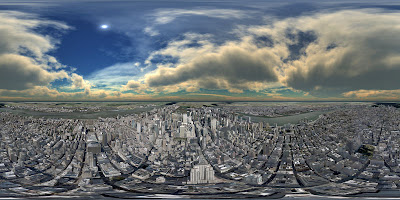
Your stitched panorama should resemble the image below:


Step 7:

As Virtual Earth does not include clouds we can now add them in as a new layer in photoshop. We used a panoramic image of clouds from TurboSquid, these used to be free but are now $5 each.

If you don’t have a cloud panorama then you can always create your own using Terragen, there is a great tutorial on how to do this here.

Adding the clouds gives you the final panorama over New York:


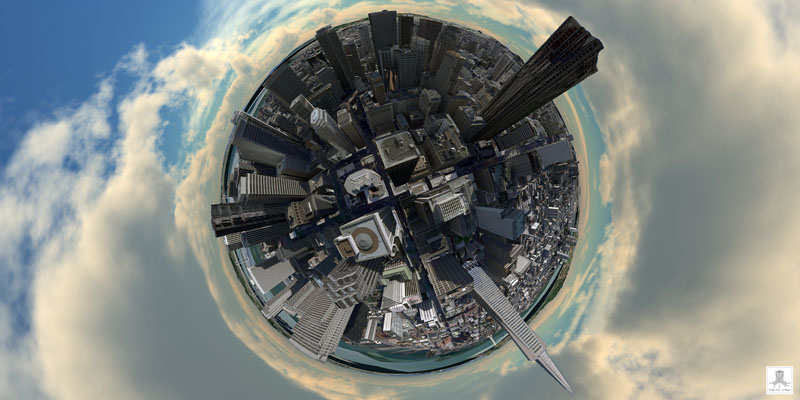
By changing the projection of the image you can create a ‘fisheye‘ view of the city:

A full resolution version of the image above can be viewed from hererecommend(6.9Mb .jpg).

The panorama can also be converted for viewing at Quicktime Virtual Reality using Pano2QTVR– which is an interesting although slightly pointless exercise.

View the panorama in Quicktime Virtual Reality (4.4Mb)

Let us know if you create your own panoramic view….

Close Menu

About Salient

The Castle
Unit 345
2500 Castle Dr
Manhattan, NY

T: +216 (0)40 3629 4753
E: hello@themenectar.com

Archives